A summary for each side
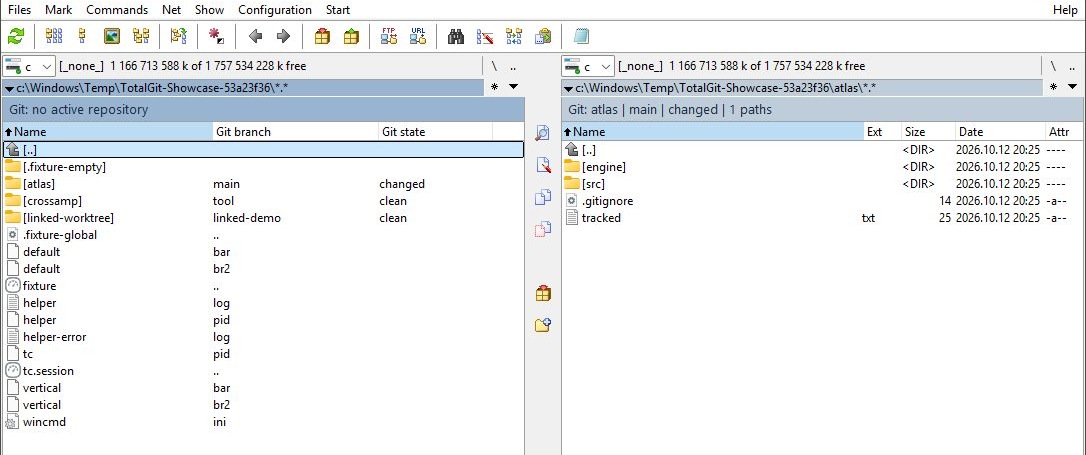
Branch and working-state lines live beneath the panel paths. Tabs, linked worktrees and nested repositories keep their own context.

 Total Git
A Total Commander companion / Windows x64


Git status.
Right in your panels.
Your files are already here.
Now your repository context is, too.
See the branch and working state beneath each panel path. Open the changed-files list when you need the whole picture.
0.3.0-preview.7 · Read-only Git features
01 / Stay in context
Browse as you normally would. Total Git keeps repository status close to the files, even in an empty or filtered directory.
Branch and working-state lines live beneath the panel paths. Tabs, linked worktrees and nested repositories keep their own context.
Open Changed files from a Git line. The window follows that panel’s repository, rather than limiting the list to its current directory.
Separate index and working-tree columns preserve both sides of a change, with original rename paths, deletions and conflict details.
02 / Read the changes
A file can be staged and edited again. Separate columns keep those states visible instead of collapsing them into a single label.
| Path | Index / staged | Working tree |
|---|---|---|
src/panel.cpp | Modified | Modified |
docs/setup.md | Renamed | — |
notes/todo.txt | — | Untracked |
Example only. The native window also shows original paths and detail flags. Read the behavior and limits ↗
Refresh when it matters. Navigation and explicit refresh events update the view. Use Ctrl + R, F2, or Refresh in Changed files. No periodic Git polling.
03 / The current preview
Total Git is an independent add-on in preview. Start with the installation guide and check the verified environment before trying it.
Preview distribution is being prepared. A package download will appear here when published. Read the installation guide in the meantime.
04 / Get started
The package includes an offline English and Hungarian guide. No separate helper application is needed.
Installation, upgrade and removal ↗Select the supplied ZIP in Total Commander and press Enter. Follow the content-plugin installer.
Place the totalgit.Startup = 1 color rule first. The field returns 0, so its color never applies.
Open a Git worktree in either panel. Its summary appears beneath the path; the Git-line menu opens Changed files.